 Other Related Topics...
Faxing with the Lotus Notes Gateway
The FaxPress Lotus Notes Gateway allows FaxPress users to send and receive fax messages as easily as email messages. Attachments are rendered into fax file format for most applications, allowing attached files to be sent to fax and email recipients simultaneously.
A FaxPress account is required to send fax messages through the FaxPress Lotus Notes Gateway. The FaxPress Lotus Notes Gateway accesses your FaxPress account, then uses the account information to prepare and send your fax.
With the FaxPress Lotus Notes Gateway’s Auto Registration feature enabled, a new FaxPress account will be automatically created, if there isn’t an existing one, from the user’s email profile information the first time a fax message is sent. (See Additional Lotus Notes Gateway Configuration Options for information on Auto Registration.)
The Lotus Notes Gateway can be configured to route inbound fax messages received by the FaxPress directly to your mail client inbox if your company’s phone system supports some form of automatic routing – Direct Inward Dialing, for example.
Configuring the FaxPress Fax Options
The FaxPress Fax Options template provides default settings for sending faxes.
To customize your FaxPress Fax Options, follow these steps:
| 1. | From the Lotus Notes inbox, select the new FaxPress Settings Mail directory, then click Fax Options. |
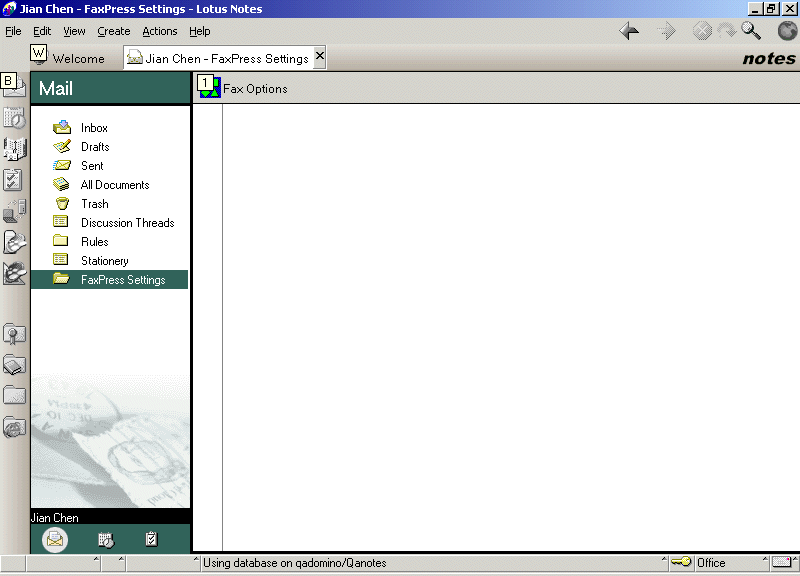
| 2. | The FaxPress User Options form provides a template allowing you to specify default user information and fax options. To select or enter the information, click the pull-down arrows. Fields left blank will use the default settings specified in the FaxPress server settings. See the FaxPress Premier Administrator Guide and FaxPress Premier User Guide for more information regarding the FaxPress server settings |
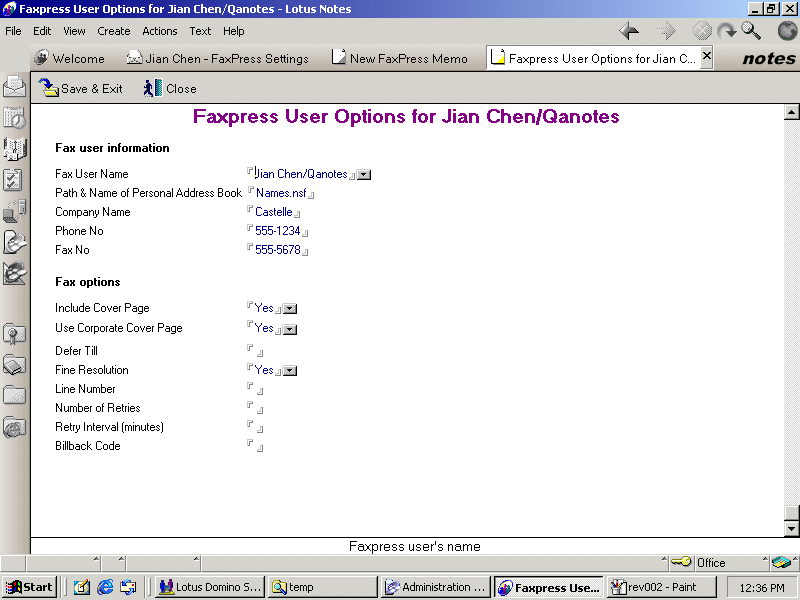
The information entered here in the FaxPress User Options template will be overridden by any information specified in the FaxPress-Select FaxPress To Options at Faxing with the Lotus Notes Gateway
Fax user information
Fax User Name - confirm the default user name is correct.
Path & Name of Personal Address Book - select the path name for the personal address book .nsf file.
Company Name - enter the recipient’s company name. Company name can also be set in the Notes address book entry for the recipient.
Phone Number - enter the recipient company’s phone number. This is the recipient’s voice phone number (not the fax number) that will appear on the cover page. All parameters in the fax option template are designed for sending outgoing faxes to the recipient. Voice phone number can also be set in the Notes address book entry for the recipient.
Fax Number - enter your company’s fax number. This fax number appears in the recipient fax machine’s remote terminal ID display.
Fax options
Include Cover Page - select Yes or No to include or exclude cover pages with your faxes.
Use Corporate Cover Page - this setting is only functional if Yes is specified in the Include Cover Page option.
Cover Page Name - if No is specified in the Use Corporate Cover Page field, and Yes is specified in the Include Cover Page option, then use this field to specify a personal cover page.
Defer Til - leave this field blank. Use the Fax Options settings available with each new fax to specify a time to send.
Fine Resolution - select resolution or leave blank to use the default FaxPress server settings.
Line Number - Specify a line number. When FaxPress has more than one fax lines, this parameter is used to specify which fax line to use to send the outgoing fax. Normally, this parameter should be left blank and FaxPress will automatically search for an available fax line to send the fax. This parameter should be used only if the user is familiar with the FaxPress' line settings. Leave blank to use the default FaxPress server settings.
Number of Retries - Specify number of retries, or leave blank to use the default FaxPress server settings.
Retry Interval (minutes) - Specify retry interval, or leave blank to use the default FaxPress server settings.
Billback code - leave this field blank. Use the Fax Options settings available with each new fax to specify a Billback Code.
|
FaxPress Premier WebHelp
Last Updated: 11/1/2007
E-mail this page |
Castelle 855 Jarvis Drive, Suite 100 Morgan Hill, CA 95037 Toll-free 800.289.7555 Tel 408.852.8000 Fax 408.852.8100 |